
PC Optimization
PC Memory & CPU AI Optimizer
Monitor and optimize Windows RAM, CPU and background resources locally.
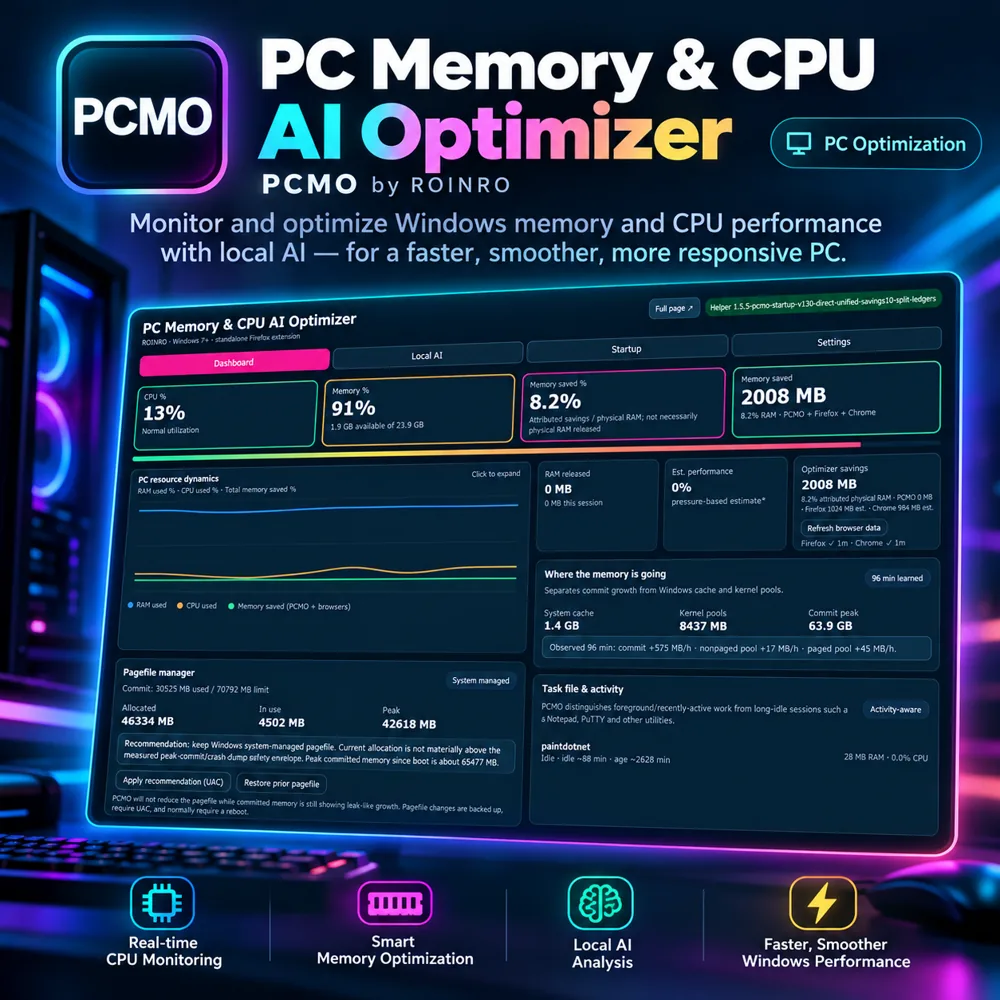
View actual application screenshot
Windows memory and CPU diagnostics, background-resource analysis, pagefile recommendations and Local AI-assisted resource planning.
- RAM and CPU resource dashboard
- Local AI process and startup analysis
- Windows pagefile and memory diagnostics
Application prefix: PM / FM. Copy the 8-character application code from the software before purchase. A paid licence is issued only after provider-verified payment completion.
PCMO licence variants: PCMO Firefox/standalone (PM) and PCMO (FM) are separately licensed. Choose the prefix printed inside your installation.
More ITSupportEx tools
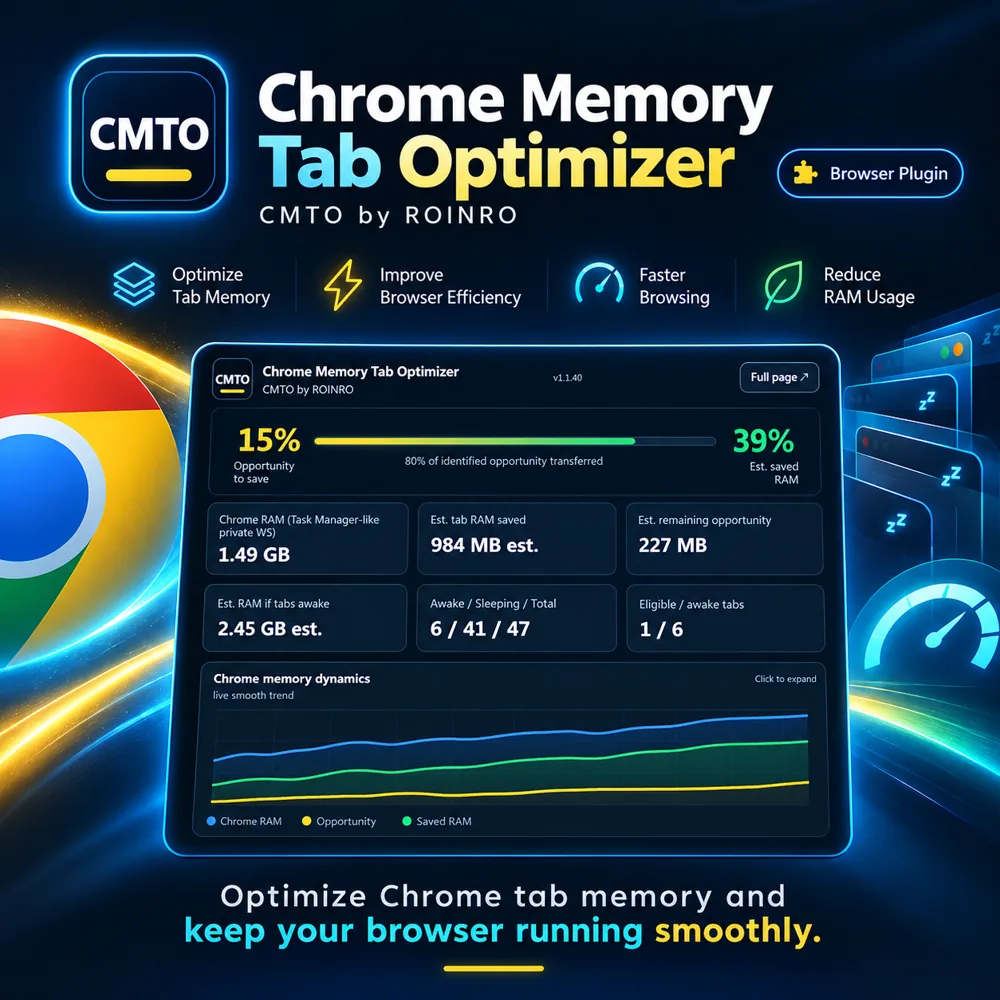

Reduce Chrome tab memory usage while preserving your browsing session.
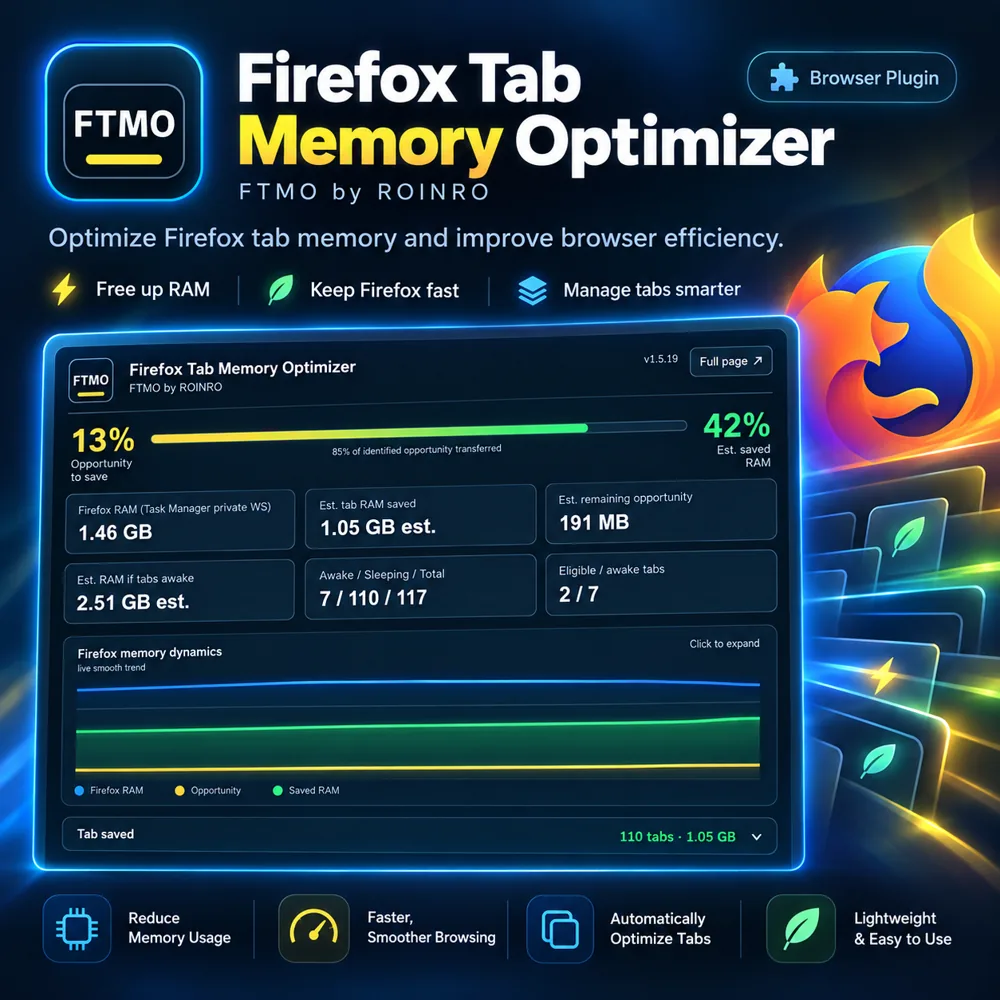
Reduce Firefox tab memory usage with tab sleeping and local measurements.
Features, downloads and setup — PC Memory & CPU AI Optimizer
Current test source: 1.4.23 R26 · Windows 7+ and Firefox extension. Unverified preview: not Chrome Web Store / Firefox Add-ons approved.
Windows RAM and CPU diagnostics, startup/service investigation and Local AI resource analysis, using an optional native messaging helper.
Main functions
- RAM and CPU status dashboard
- Startup and background-process inspection
- Local AI recommendations
- Pagefile and Windows service diagnostics with explicit permissions
Testing only: The ZIP/XPI is not a verified browser-store release. Review its permissions and source code. Do not deploy to production machines or run optional Windows helper scripts without independent testing.
Step-by-step developer installation
- Download the R26 source-review ZIP and extract it on a Windows test PC.
- Open Firefox, go to about:debugging#/runtime/this-firefox and select Load Temporary Add-on.
- Select extension/manifest.json from the extracted source folder (or use the unsigned XPI for temporary testing).
- Open the PCMO dashboard. Browser UI may load, but Windows measurements and actions require a working local helper.
- Only after reviewing the bundled helper scripts and confirming compatibility, test the optional native helper on an isolated Windows machine; it is not installed automatically by this package.
- Check the helper status, then verify CPU/RAM readings. Avoid applying startup, service or pagefile changes during initial tests.
- Copy the PM or FM application code shown by your installation; choose that exact variant in /licence or /payments.
- Firefox temporary add-ons disappear after restart; a production add-on requires proper Mozilla signing.
Licensing & activation · Buy or renew a licence · Contact support
Customer reviews
No verified customer ratings yet. Be the first to leave a review.
Reviews are submitted through WordPress and subject to moderation. No ratings or testimonials are fabricated.
Write a review