

Browsers Plugins
Chrome Memory Tab Optimizer
Reduce Chrome tab memory usage while preserving your browsing session.
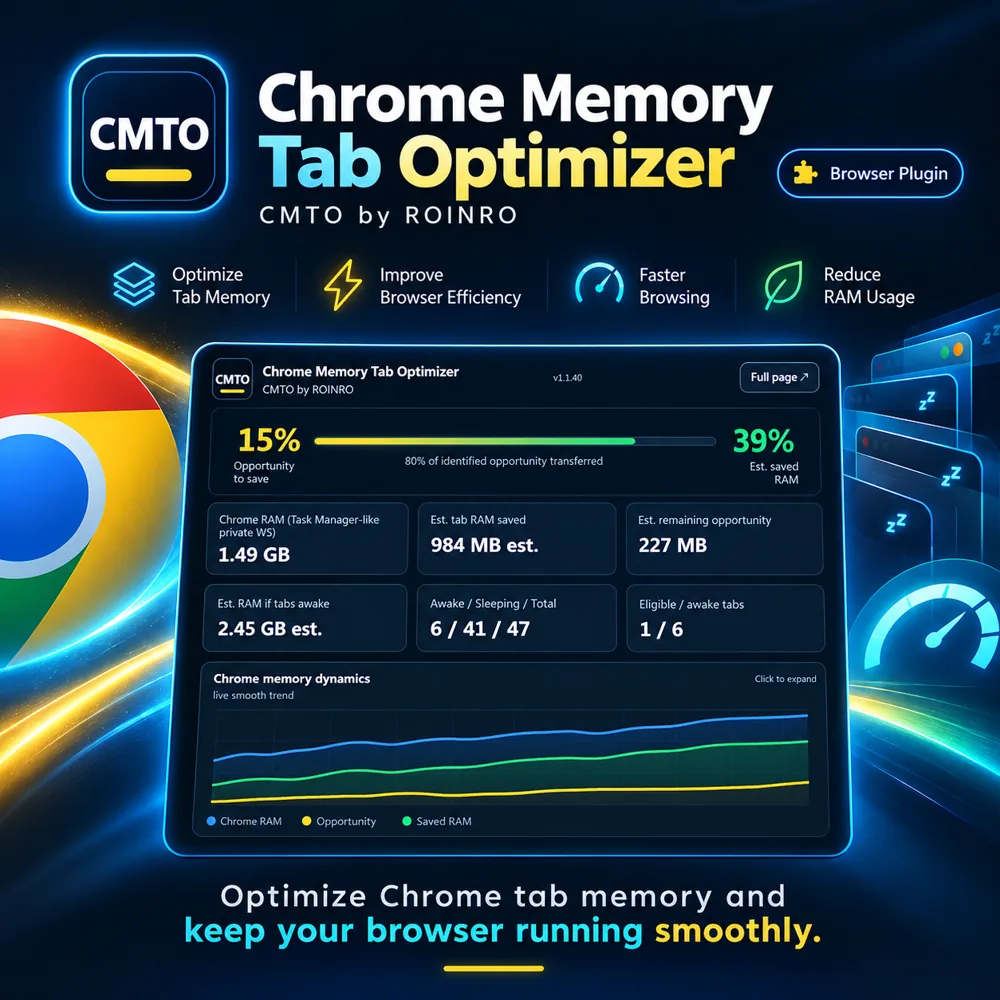
View actual application screenshot
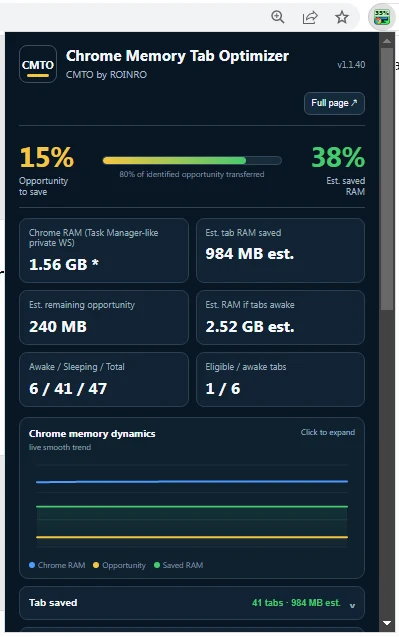
Chrome tab memory optimization with configurable sleeping, protection against background refresh and local RAM-savings reporting. Optional local helper support.
- Automatic tab optimization
- Prevent unwanted background refresh
- Optional local helper and usage reporting
Application prefix: CM. Copy the 8-character application code from the software before purchase. A paid licence is issued only after provider-verified payment completion.
More ITSupportEx tools
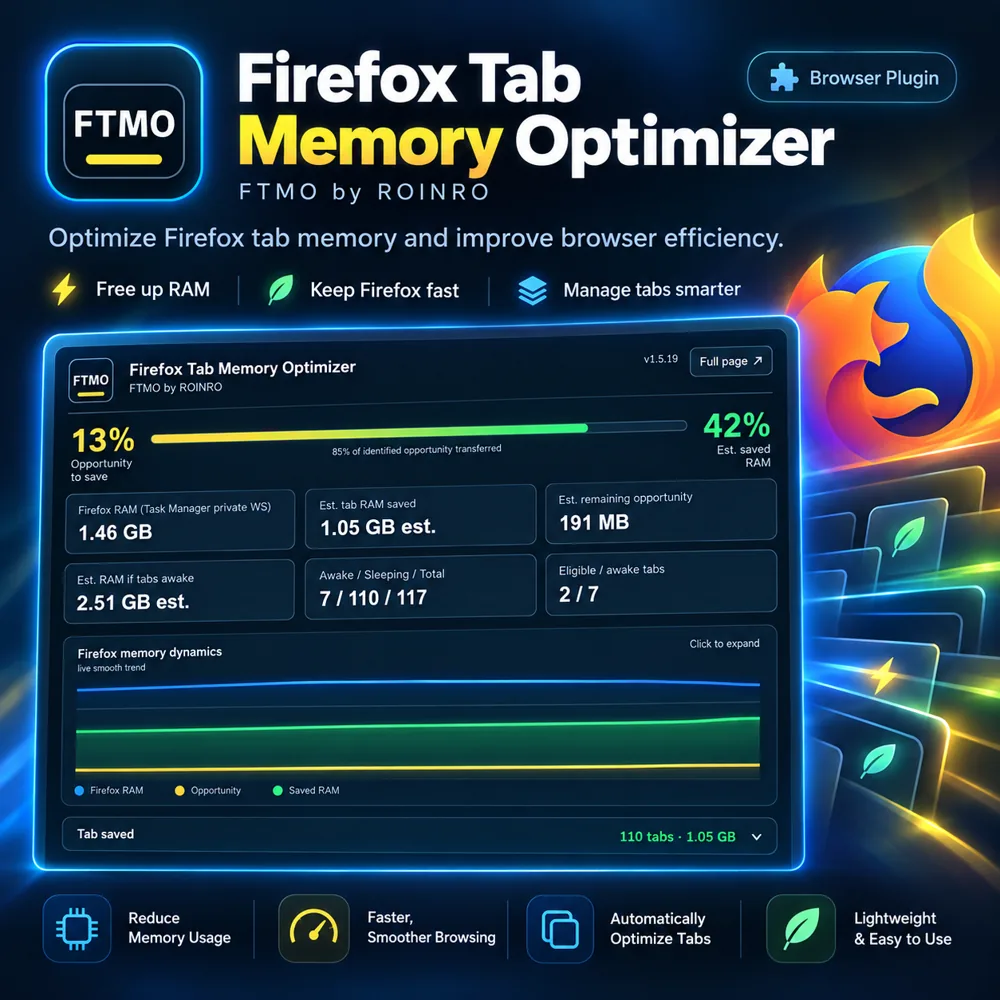

Reduce Firefox tab memory usage with tab sleeping and local measurements.
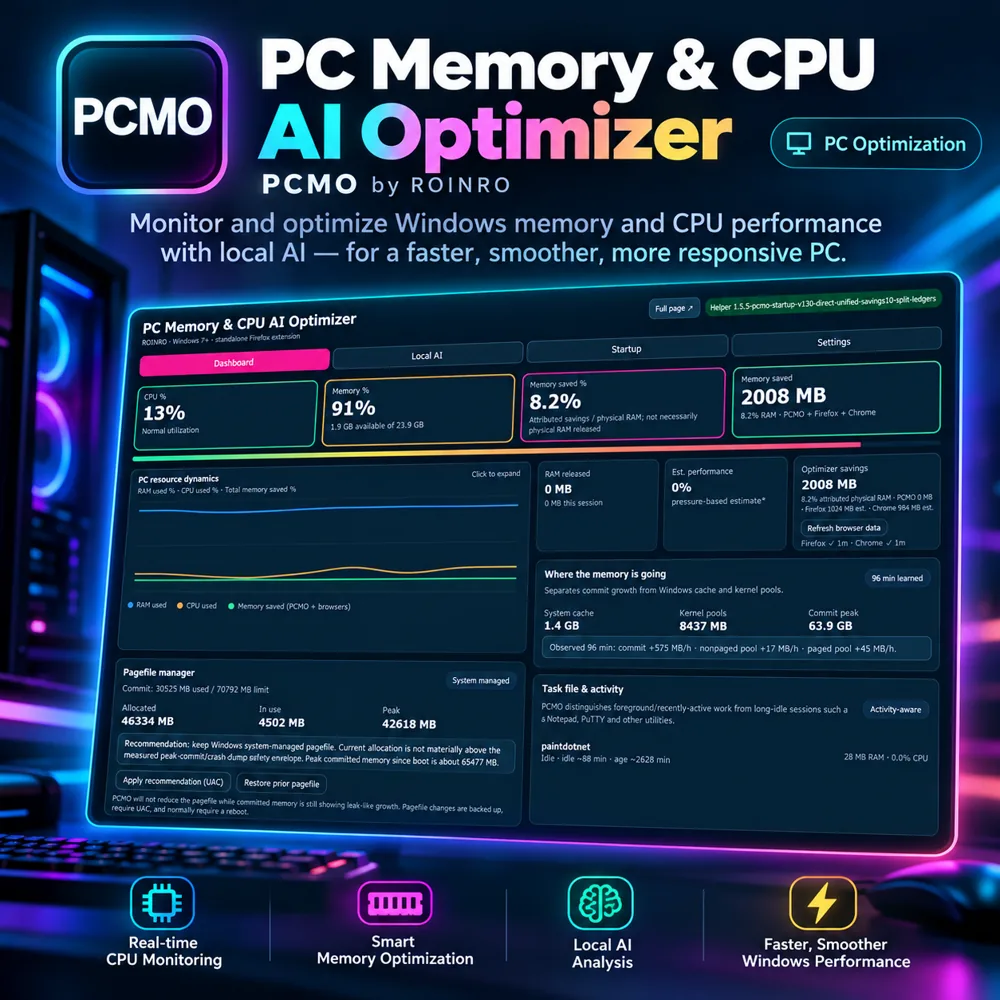

Monitor and optimize Windows RAM, CPU and background resources locally.
Features, downloads and setup — Chrome Memory Tab Optimizer
Current test source: 1.1.40 R26 · Google Chrome. Unverified preview: not Chrome Web Store / Firefox Add-ons approved.
Optimize eligible idle Chrome tabs, limit unwanted background refresh, display RAM-saving estimates and monitor sleeping/awake tabs.
Main functions
- Automatic and manual idle-tab sleeping
- Eligible, awake and sleeping tab tracking
- Flicker-free refresh handling
- Optional Windows native helper
Testing only: The ZIP/XPI is not a verified browser-store release. Review its permissions and source code. Do not deploy to production machines or run optional Windows helper scripts without independent testing.
Step-by-step developer installation
- Download the Chrome test ZIP below. It is not a Chrome Web Store verified release.
- Extract the ZIP into a stable folder on your PC. Ensure manifest.json is immediately inside that folder.
- In Chrome, open chrome://extensions and enable Developer mode.
- Click Load unpacked and select the extracted folder. Review and approve extension permissions.
- Pin CMTO using the Extensions (puzzle-piece) menu, then open its dashboard.
- First test on noncritical tabs; use conservative defaults before trying automatic sleeping.
- Copy the eight-character CM application code from the extension to /licence or /payments to activate a separately purchased licence.
- Use Chrome Extensions to remove the unpacked extension when testing is complete.
Licensing & activation · Buy or renew a licence · Contact support
Customer reviews
No verified customer ratings yet. Be the first to leave a review.
Reviews are submitted through WordPress and subject to moderation. No ratings or testimonials are fabricated.
Write a review